How to Register a Free Hosting Account
Free hosting is included with selected membership plans. Sign-up takes about five minutes: you need your domain name and the login of your membership.
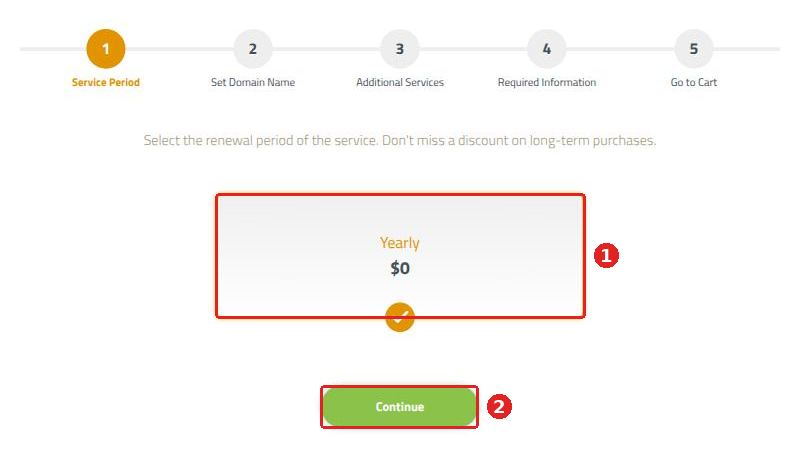
1. Choose the period
- Yearly ($0) is already selected.
- Click Continue.
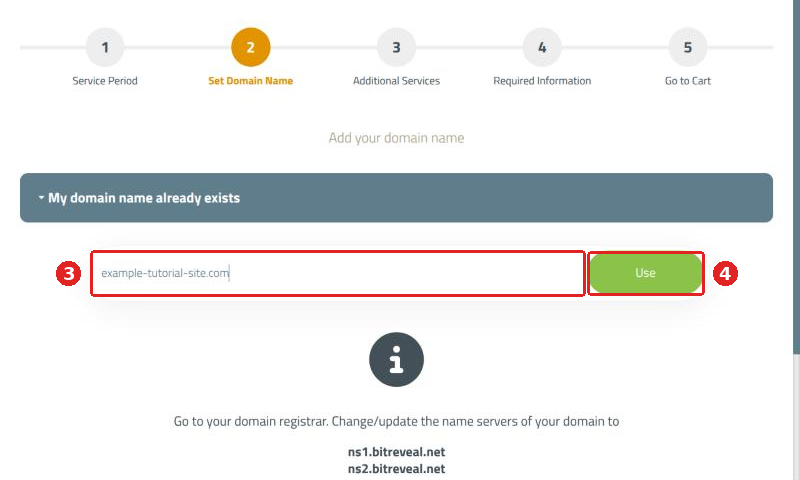
2. Add your domain
- Type your domain, for example yoursite.com (without http:// or www).
- Click Use.
At your domain registrar, point the domain to our name servers ns1.bitreveal.net and ns2.bitreveal.net. Your website shows once the change has spread, usually within a few hours.
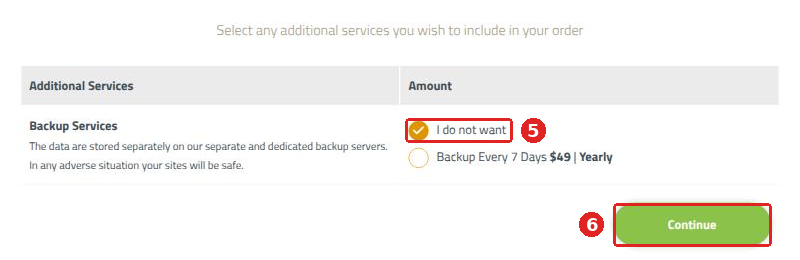
3. Skip the extras
- Leave I do not want selected. The free plan does not include backups.
- Click Continue.
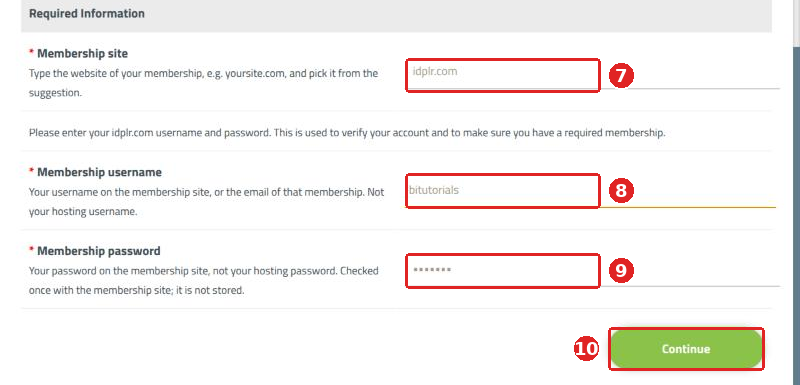
4. Confirm your membership
- Type the website of your membership and pick it from the list that appears.
- Enter your membership username, or the email of that membership (not a hosting username).
- Enter your membership password, not your hosting password. We check it once and never store it.
- Click Continue.
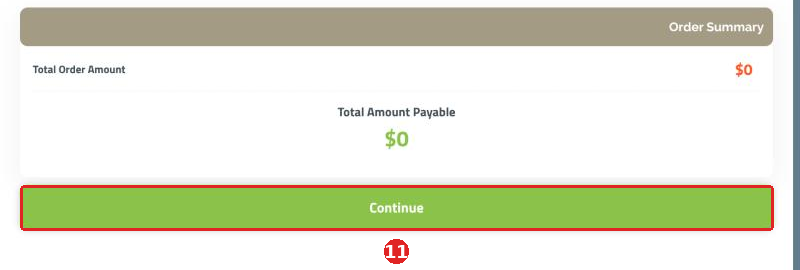
5. Check your cart
- Your cart shows the free hosting at $0. Click Continue.
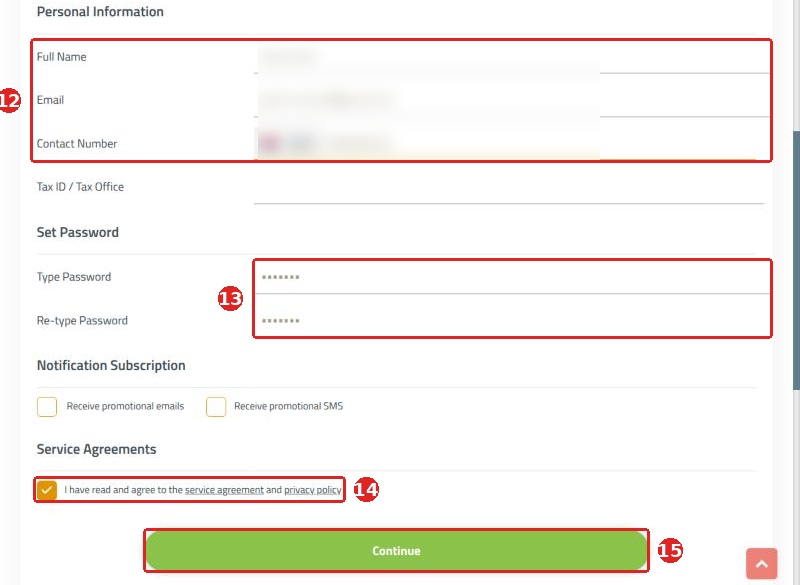
6. Create your BitReveal account
- Enter your name, email and phone. Already have a BitReveal account? Click Sign In at the top instead and skip to step 16.
- Choose a password for your BitReveal account.
- Tick the agreement.
- Click Continue.
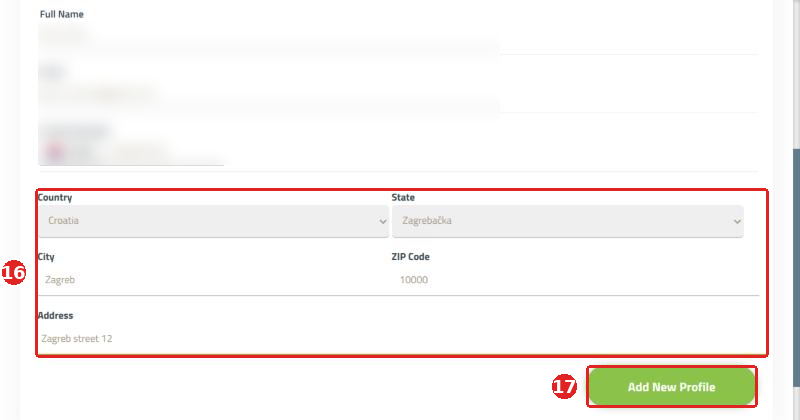
7. Add your address
- Enter your country, city and address. There is nothing to pay; the address is only for your account record.
- Click Add New Profile.
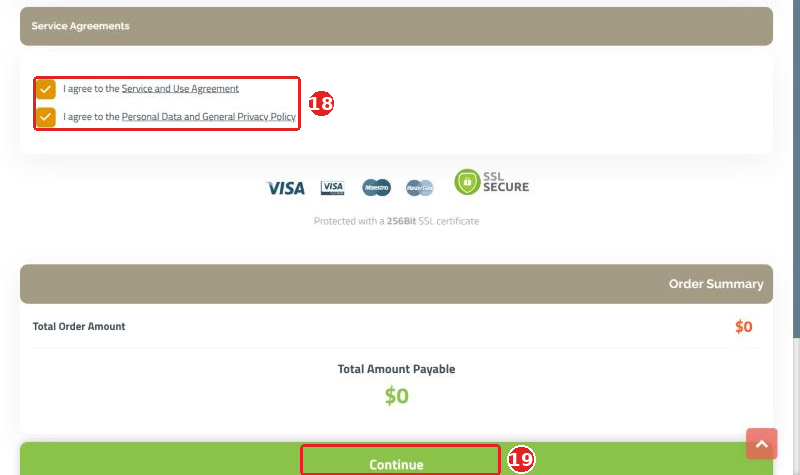
8. Place the order
- Tick both agreements.
- Click Continue. Creating your hosting can take a minute: please wait for the next page and do not click twice.
9. Open your hosting
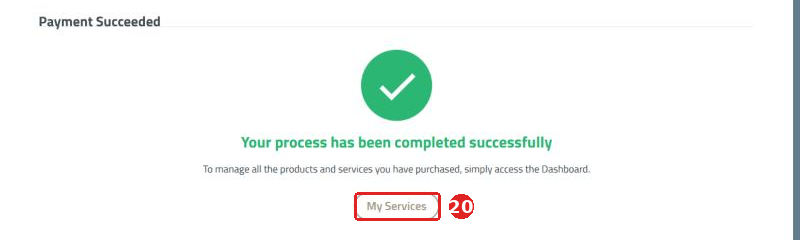
- Click My Services.
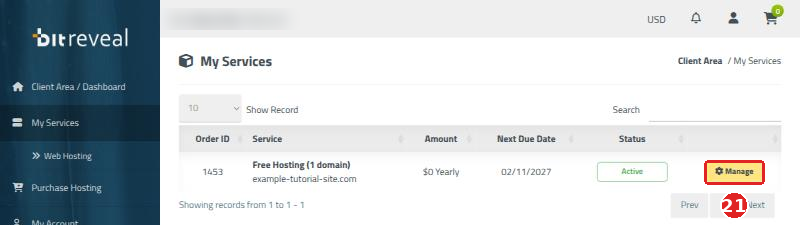
- Click Manage next to your free hosting.
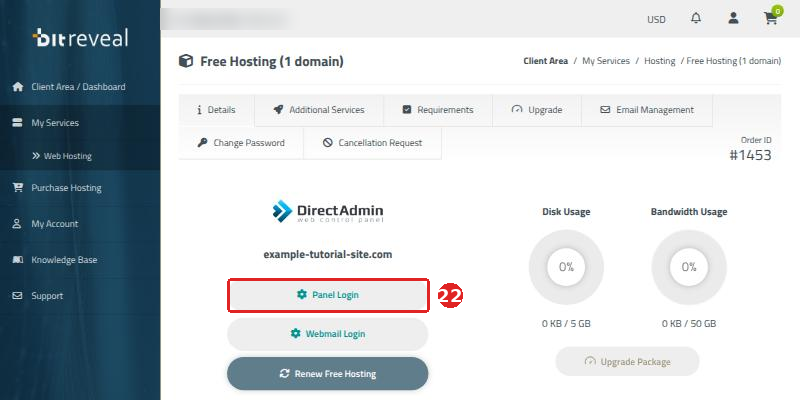
- Click Panel Login to open your DirectAdmin control panel.
That's it: your free hosting is ready. Next, you can create your website. Once a year we will ask you by email to confirm that you still use it; see How to renew a free hosting account.
Questions? Open a support ticket in your account. Can't log in? Contact us.
Copyright © 2026 All Rights Reserved
